Add a domain
- Open Applications, select the application and choose its Addresses tab.
- Choose Add a custom address. Select a Company domain and enter a subdomain if needed, or choose Enter an address for another hostname you own. Review Address to add, then choose Add this address.
- If Hosting serves your DNS, choose Review website DNS changes, then Preview changes.
Review any replacements before choosing Apply reviewed changes. If DNS is managed elsewhere,
publish the records shown at your DNS provider. This is usually a
CNAMEfor a name likeshop.example.com, or your provider'sALIAS/ANAMEfor the bare domain. - Choose Check DNS, or wait for the scheduled check. When DNS matches and the HTTPS certificate is ready, the name answers visitors.
- If the application has more than one name, choose Use this address on the one visitors should land on.
The current primary stays in use while you prepare the secondary address. After DNS and HTTPS are ready, confirm Use this address to switch the application's links and sign-in. Other working names stay attached, and you keep your registrar and DNS provider. If the address stops being ready before you confirm, wait for DNS and HTTPS to recover, then try again.
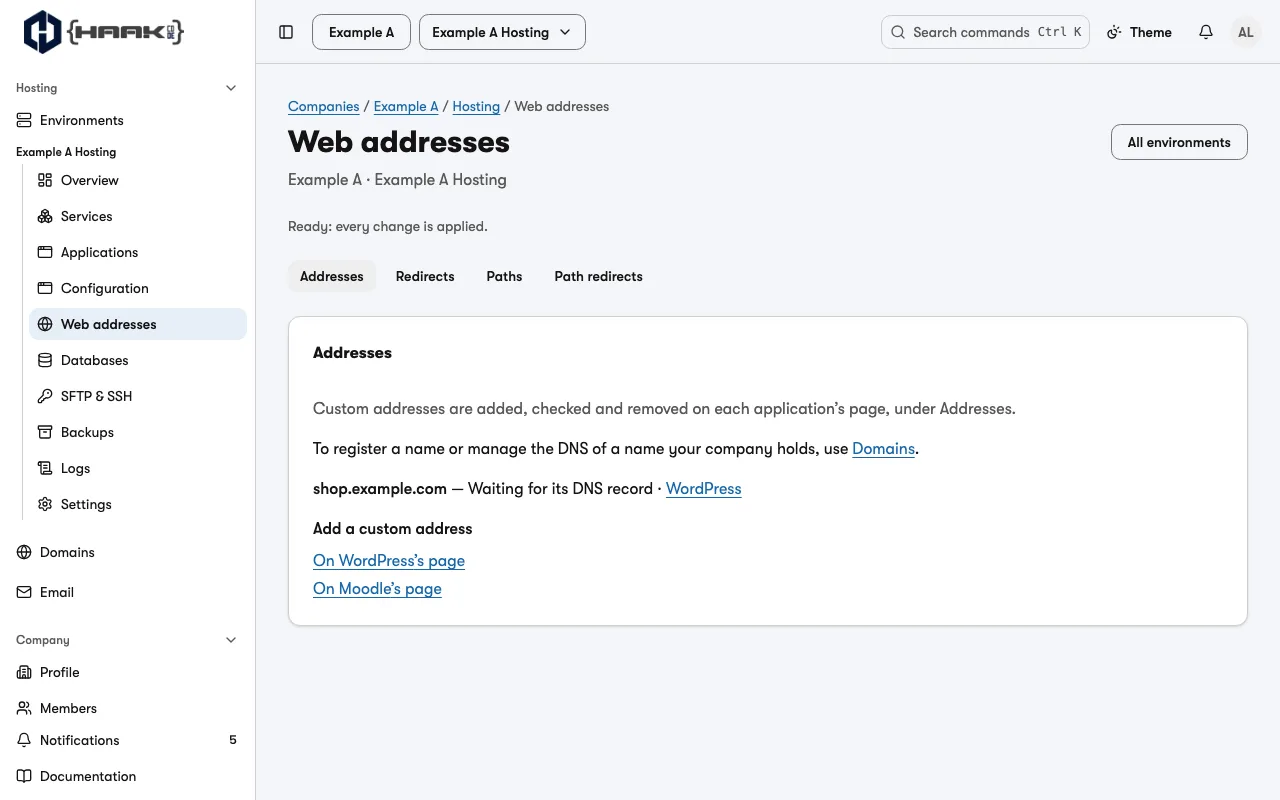
Web addresses, in the environment's sidebar, lists every name in the environment and holds Redirects, Paths and Path redirects.
Next
- Record shapes, states, redirects and removing a name: Web addresses.
- Register, renew or transfer the name itself: Domains.