Add an app or static site
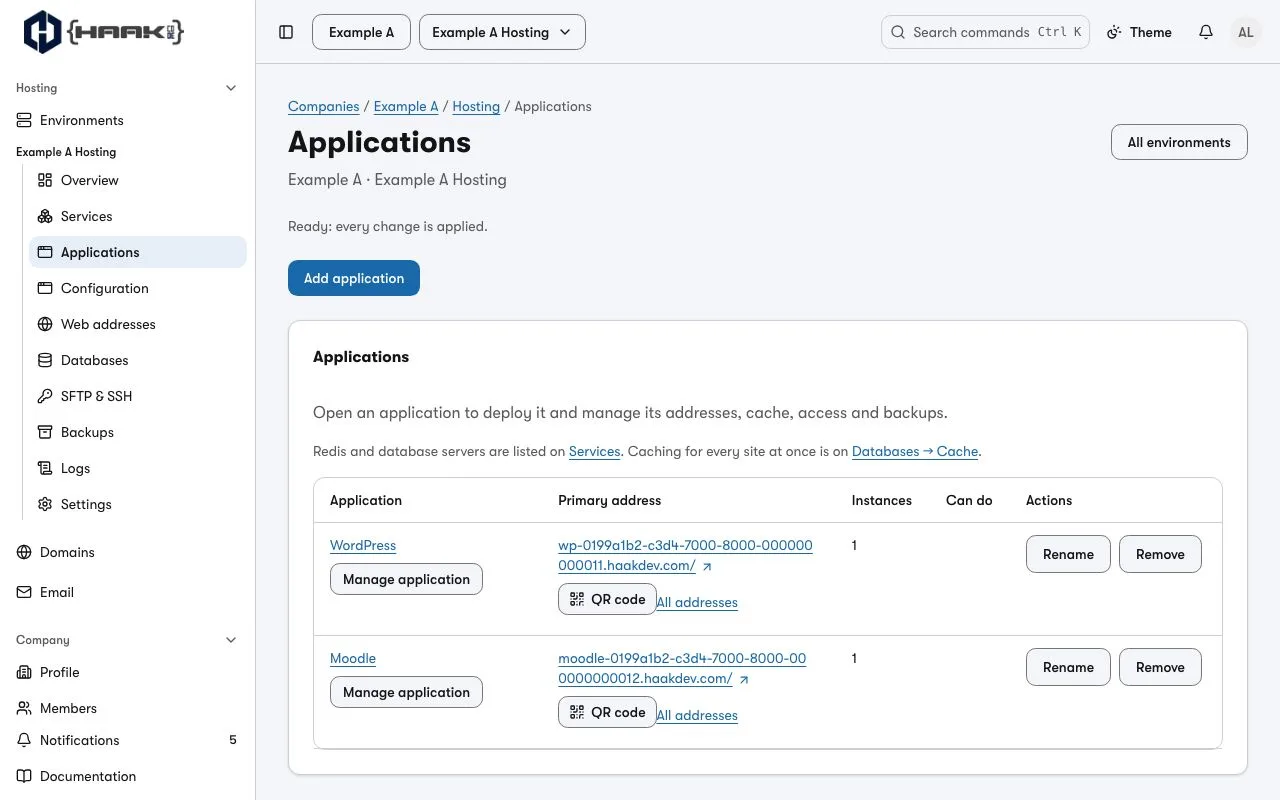
- Open the environment's Applications page and choose Add application.
- What you are adding — choose WordPress, Moodle, Secret manager or My own code, then Next.
- Its code — for your own code, choose A GitHub repository or A ZIP file I upload. If this is your first repository, choose Connect GitHub and authorize it. Hosting brings you back to this step. Choose the repository, then use its suggested branch or pick another. A repository already pinned to a tag keeps that tag. If loading fails, choose Retry repository connections. An install such as WordPress has no code to choose.
- What we found — read what Hosting will do: a static site, a built front-end app, a Node.js,
Python, PHP or Laravel app, the version, whether it needs a database and its name. Open only the
lines you want to change, then choose Review. For GitHub code with
hosting.yaml, Hosting suggests settings such as the name, runtime and start command from the selected ref. When the file describes several apps, enter the app's Folder in the code. To review the full declaration, including settings beyond the wizard, use Review the full YAML in Configuration. - Review — check what will run, its address and what it reserves from your pool, then choose Add and deploy followed by its name.
The page then shows each step as it happens — connect the code, build, start the release, address answers — and says the application is live only once its address answers. You can leave the page while it builds: Hosting deploys it when the build succeeds. It starts on a generated address; add your own name afterwards with Add a domain.
A Ruby, Go or other runtime not listed in step 2 is set up in the environment's configuration: choose Configure a source-built application.
Next
- What each step reads from your code, and what your code must do: Applications.
- WordPress, Moodle, Laravel, Ruby and other types: Deploy other application types.
- Ship a change later: Deploy a change.