Deploy a change
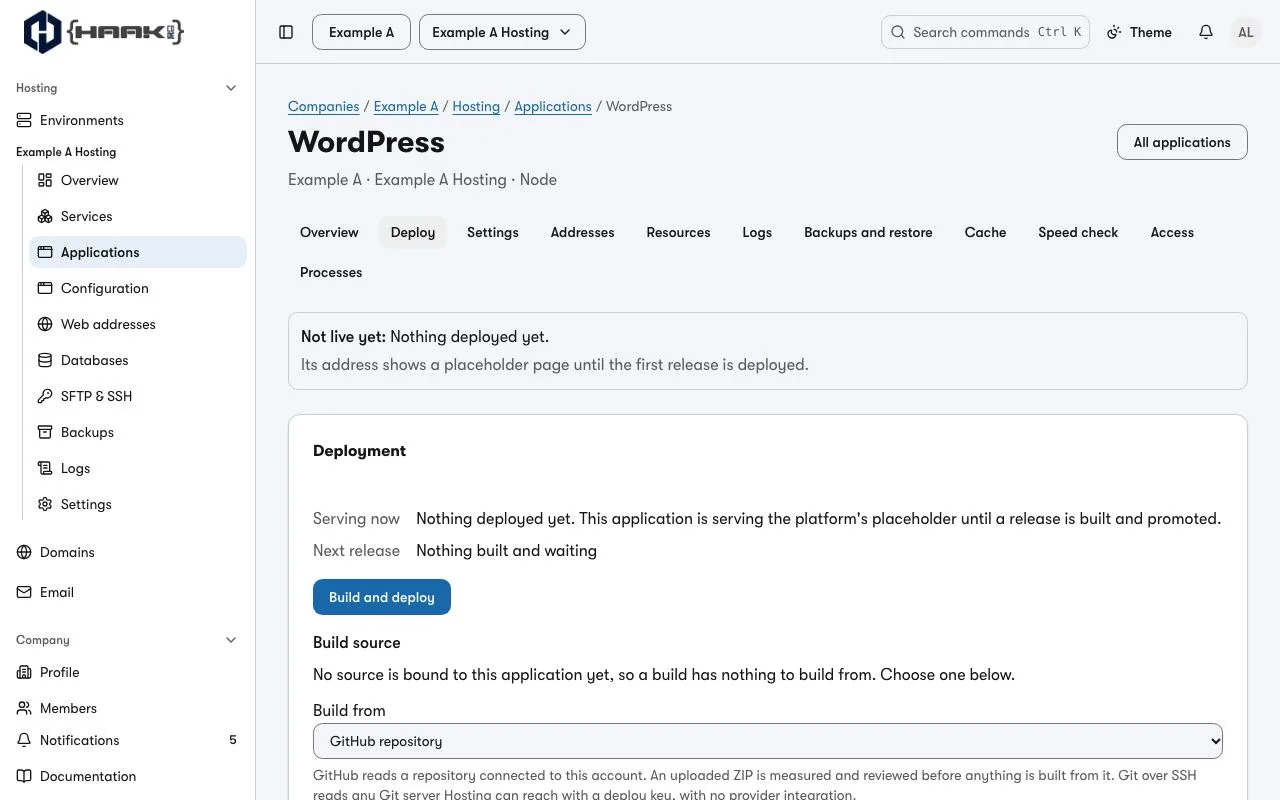
An application built from your code gets changes through its Deploy tab. Open Applications, select the application and choose Deploy.
From GitHub
If you are setting up the application for the first time, you can connect GitHub while adding it. A connected repository can follow a branch or a pinned tag. The automatic deploy choice applies to the branch you approve.
- With Deploy automatically when this branch changes ticked, push to the branch. The push builds and deploys by itself.
- Without it, push, then choose Build and deploy. Hosting builds the branch's newest commit.
From a ZIP
Upload the new archive, read what Hosting measured in it, and choose Build and deploy this archive.
Watch it go live
Deploy progress shows each step as it happens: the build, then the new release starting. The release that was serving keeps serving until the new one is ready, so a failed build or start changes nothing your visitors see. If a step fails, the page names it; see Troubleshoot a deploy or an application.
You can leave or reload the page: the deploy is recorded with the build, and Hosting deploys the release when the build succeeds. While the environment is applying another change — another application you just added, say — the release reads Will deploy when the current change finishes and starts as soon as that change is done. A failed build deploys nothing.
Go back to an earlier release
Under Earlier releases, choose Rebuild this release. Hosting builds the exact source that release recorded and deploys it once it is ready, like any other build. A database is not rolled back with the code: see Restore a backup.
Next
- How pushes reach us, and why one built nothing: Applications.
- Change the start command, port or environment variables: Settings.